TechProcessPart 2 of 9, How the Internet WorksUpdated 1 October 2026
What Happens When You Open a Website?
Opening a web page takes seven quick steps: the browser reads the URL, DNS finds the server's IP address, TCP and TLS set up a secure connection, an HTTP request asks for the page, and the reply arrives in packets that the browser turns into a page.
Interactive
Explore it step by step
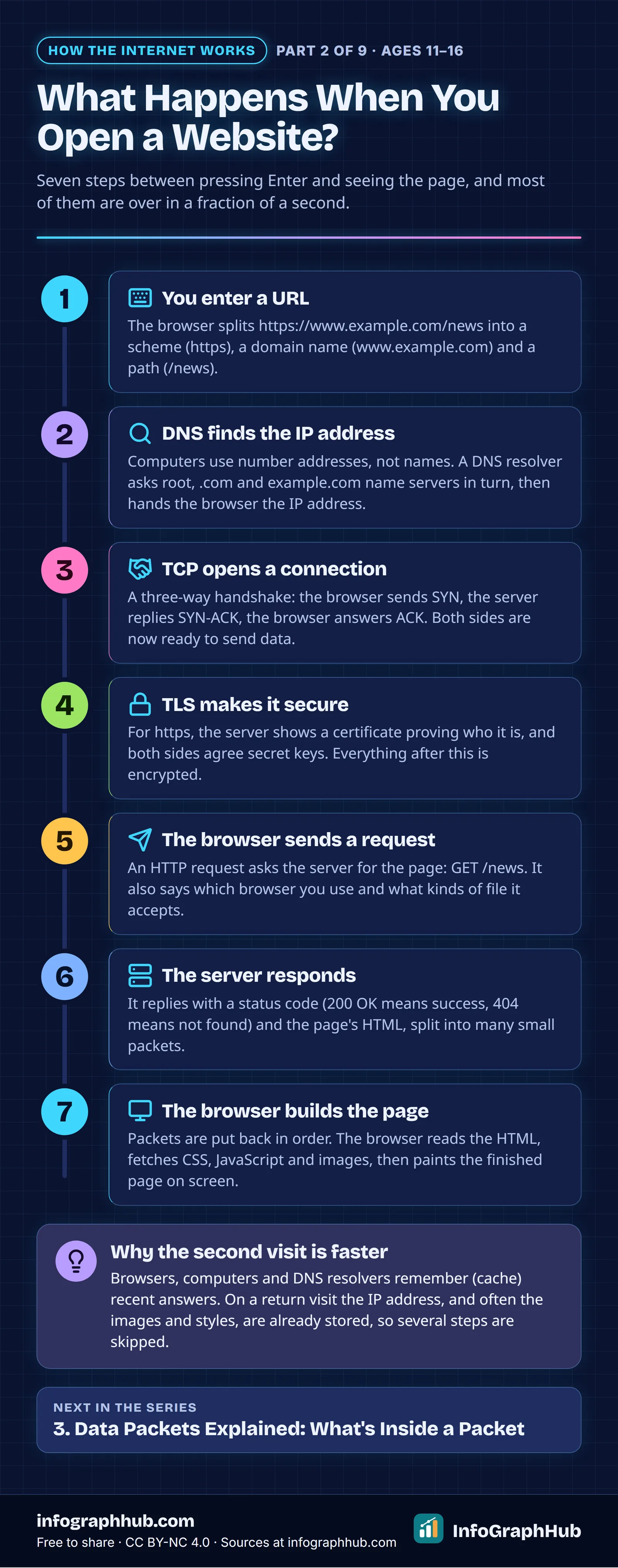
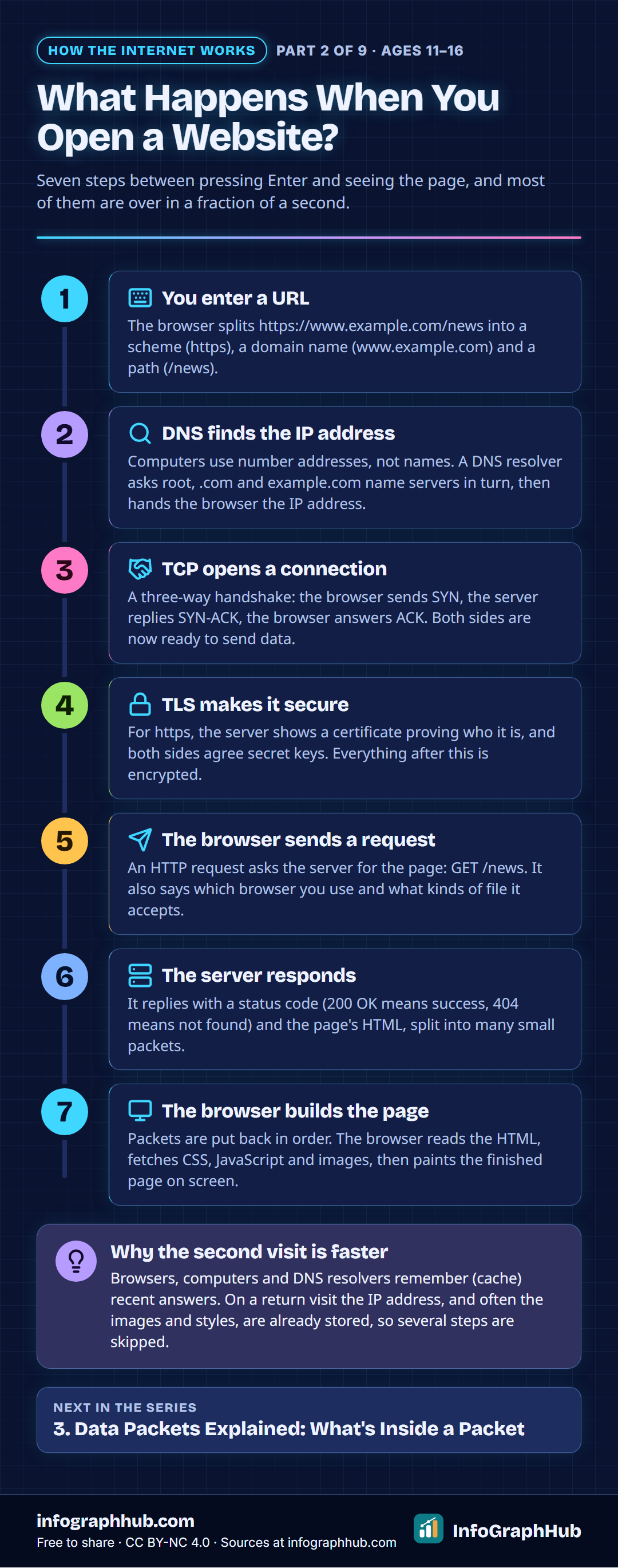
7 steps: You enter a URL → DNS finds the IP address → TCP opens a connection → TLS makes it secure → The browser sends a request → The server responds → The browser builds the page. Press play, or choose a number to explore.
Step 1 of 7: You enter a URL
The browser splits https://www.example.com/news into a scheme (https), a domain name (www.example.com) and a path (/news).
Step 2 of 7: DNS finds the IP address
Computers use number addresses, not names. A DNS resolver asks root, .com and example.com name servers in turn, then hands the browser the IP address.
Step 3 of 7: TCP opens a connection
A three-way handshake: the browser sends SYN, the server replies SYN-ACK, the browser answers ACK. Both sides are now ready to send data.
Step 4 of 7: TLS makes it secure
For https, the server shows a certificate proving who it is, and both sides agree secret keys. Everything after this is encrypted.
Step 5 of 7: The browser sends a request
An HTTP request asks the server for the page: GET /news. It also says which browser you use and what kinds of file it accepts.
Step 6 of 7: The server responds
It replies with a status code (200 OK means success, 404 means not found) and the page's HTML, split into many small packets.
Step 7 of 7: The browser builds the page
Packets are put back in order. The browser reads the HTML, fetches CSS, JavaScript and images, then paints the finished page on screen.
Use this infographic
Free under CC BY-NC 4.0, with credit to InfoGraphHub.
From a click to a page in about a second
When you type a web address and press Enter, your screen usually fills with a page within a second or two. In that time your browser and a server, which may be thousands of kilometres away, hold a short, very fast conversation. Each part of the conversation follows its own protocol: an agreed set of rules that both sides understand.
This page follows one visit to an imaginary news page, https://www.example.com/news, step by step.
1. The browser reads the URL
A URL (uniform resource locator) has several parts:
httpsis the scheme: the protocol to use, here the secure version of HTTP;www.example.comis the domain name: which website you want;/newsis the path: which page on that website.
Computers on the internet do not find each other by name, though. They use numerical IP addresses, so the browser first has to turn the name into a number.
2. DNS finds the IP address
The Domain Name System (DNS) works like the internet's phone book. The browser first checks whether it has looked up this name recently and kept the answer (a cache); so does your computer's operating system. If not, the question goes to a DNS resolver, usually run by your internet service provider.
If the resolver does not know either, it asks in turn:
- a root server, which points it to the servers for
.com; - a top-level domain (TLD) server for
.com, which points it to the servers forexample.com; - the website's authoritative name server, which gives the actual IP address.
The resolver passes the address back to the browser and remembers it for a while, so the next visitor gets an answer much faster.
3 and 4. Opening a secure connection
With the IP address known, the browser opens a connection to the server using TCP (Transmission Control Protocol). TCP starts with a three-way handshake: the browser sends a SYN message ('can we talk?'), the server replies SYN-ACK ('yes, can you hear me?') and the browser answers ACK ('yes'). TCP then makes sure that every piece of data arrives, and in the right order.
Because the address starts with https, a second handshake follows: TLS (Transport Layer Security). The server sends its certificate, which proves it really is the owner of example.com, and the two sides agree on secret keys. From now on everything they send is encrypted, so anyone snooping on the Wi-Fi or the network sees only scrambled data. In the newest version, TLS 1.3, this handshake needs only one round trip.
5 and 6. Request and response
Now the browser makes an HTTP request. The most common kind is GET, which simply means 'please send me this page': GET /news.
The server replies with an HTTP response. It starts with a status code: 200 OK means success, 404 Not Found means there is no page at that address, and 503 means the server cannot cope right now. After the status come extra details called headers, then the page itself, written in HTML. The response is too big to send in one go, so it travels as many small packets, which can take different routes and are put back in order when they arrive.
7. The browser builds the page
The browser reads the HTML and builds its own model of the page. As it reads, it finds links to more files: CSS for the design, JavaScript for anything interactive, and images, fonts and videos. Each needs its own request, and sometimes its own DNS lookup, because a page can pull files from several different websites. Finally the browser works out where everything goes and renders (paints) the page on your screen.
A busy page can involve dozens of requests. That is why fast websites keep their files small and store copies on servers close to their visitors.
Frequently asked questions
What happens when you type a URL into a browser?
The browser finds the website's IP address using DNS, opens a connection to the server with a TCP handshake, sets up encryption with TLS if the address starts with https, sends an HTTP request for the page, receives the response in packets and then builds and displays the page.
What does DNS do?
DNS (the Domain Name System) translates domain names such as example.com, which people can remember, into the IP addresses that computers use to find each other. It is often called the phone book of the internet.
What is the TCP three-way handshake?
It is how a TCP connection starts. The client sends SYN, the server replies SYN-ACK and the client answers ACK. After these three messages both sides know the other is ready, and data can be sent.
What does a 404 error mean?
It is an HTTP status code meaning the server cannot find the page you asked for, usually because the address is wrong or the page has been deleted. A 200 status code means the request worked.

Sources & methodology
Every fact is checked against the sources below. We write original explanations and draw original graphics; no figures are copied from textbooks. Spotted an error? See our corrections policy.
- What is DNS? How DNS works (Cloudflare Learning Center, accessed 1 Oct 2026)
- What is Transport Layer Security (TLS)? (Cloudflare Learning Center, accessed 1 Oct 2026)
- How the web works (MDN Web Docs (Mozilla), accessed 1 Oct 2026)
- Populating the page: how browsers work (MDN Web Docs (Mozilla), accessed 1 Oct 2026)
- An overview of HTTP (MDN Web Docs (Mozilla), accessed 1 Oct 2026)
- What is TCP/IP? (Cloudflare Learning Center, accessed 1 Oct 2026)
Editorial review pending · Updated
Made by the InfoGraphHub editorial team (how we research and check: editorial and AI policy). First published 1 October 2026, last reviewed 1 October 2026. Found a mistake? Tell the editors.
For teachers: ages and curriculum fit
Ages 11–16 · Grades 6–10 (US) · Years 7–11 (UK) · Classes 6–10 (India)
Embed this on your site
Paste this HTML into your page. Keep the credit line: it is required by the CC BY-NC 4.0 license.
Related infographics


For teachers and parents: new InfoGraphHub resources by email
One short email when new free resources go live. For adults (18+) only. No spam, no tracking in emails, unsubscribe anytime.